Export a Power BI Service report
Please note, for shared workspaces you at least must be a Contributor to the workspace to be able to download a .pbix file.
As a reminder, Power BI dashboards in Power BI service cannot be migrated (exported/imported). These will need to be recreated in the nhs.net environment.
- Step 1: Login to https://app.powerbi.com in your current environment (england.nhs.uk) using your england.nhs.uk account.
- Step 2: Select the desired workspace (personal/shared).

- Step 3: Locate the desired report and click on it to open the report.

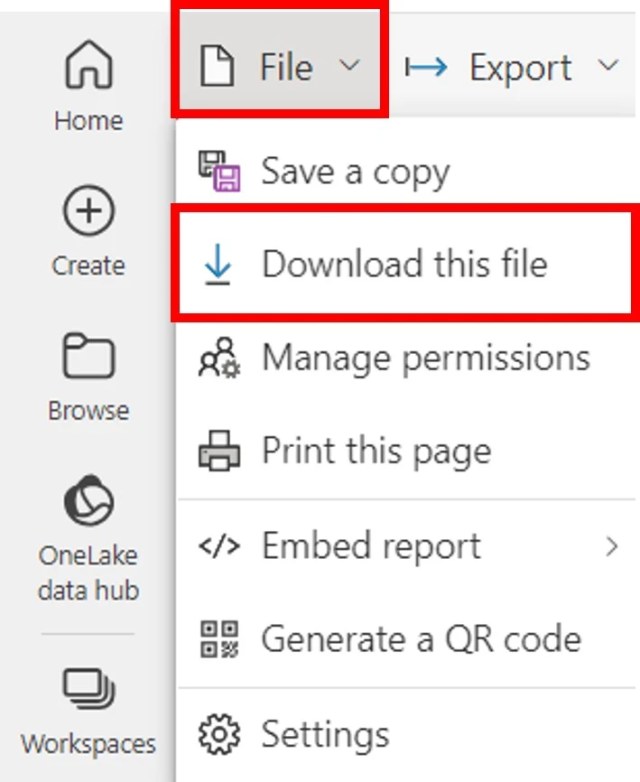
- Step 4: Once the report opens, select ‘File’ in the top pane, then ‘Download this file’.
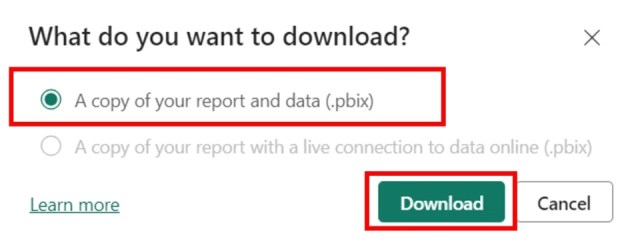
- Step 5: Select ‘A copy of your report and data (.pbix)’, then click ‘Download’. Save the export in a folder where you can access it later when importing your resources into the nhs.net environment.
Step 6: Repeat these steps for all workspaces and reports required.
Power BI Desktop
If you have a Power BI Desktop report, please ensure this is saved in your legacy england.nhs.uk OneDrive, Teams or SharePoint or in a folder you can access later once the migration switchover is completed.